Email clipping happens when an email is too big and the email provider (like Gmail) cuts off part of it. This usually occurs when an email is larger than 102 KB in size. When this happens, Gmail will show a "[Message clipped] View entire message" link instead of displaying the entire email right away.
This can be a problem because some recipients might not click the link to see the rest of the email, which means they could miss helpful information or, more importantly, the key call to action buttons/links in the message that generate your email's ROI.
To avoid email clipping, it's best to keep emails small by using fewer images, reducing unnecessary code, and keeping the content concise. (We explain more below.)
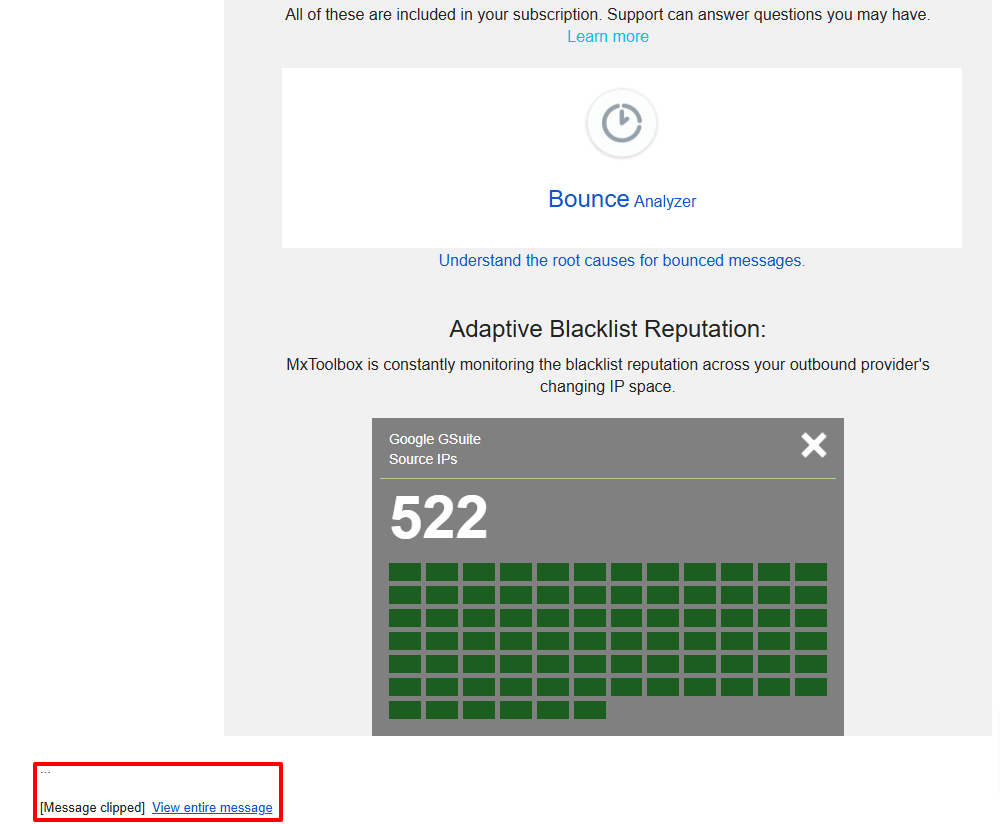
What Are Gmail's Email Clipping Limits?
File Size: Gmail automatically clips emails that exceed the size of 102 KB... Not megabytes, kilobytes. Therefore, if you send newsletters or marketing campaigns to recipients who use Gmail, you should be aware of this provider's file size capacity. This is where minimizing your email's HTML length helps ensure Gmail doesn't clip your message.
Identical Subject Lines: If you send messages with identical subject lines, Gmail will clip and thread those messages. For example, if you send the same email for testing purposes with the same subject/content, Gmail will thread them into one succinct email chain. Unbeknownst to you, that adds to the overall bulk of the message, which Gmail might clip due to its size (over the 102 KB threshold).
Effects of Gmail's Email Clipping
Although recipients can click the three (3) dots to expand and display the entire message, clipped messages require another step to access your whole email, so customers might not want to go that extra mile. This can decrease email engagement and negatively impact your return on investment (ROI) of your email campaign.
Logically, when recipients are required to complete an extra act to view the entirety of your email, they feel less inclined to open it. A decrease in email open rates means your company's newsletters and marketing campaigns have a negative effect on your bottom line. If customers never click your clipped email, they never see your call to action (CTA), which decreases your ROI.
Since a list-unsubscribe header is required in Gmail, having your email clipped could lead to delivery issues. If critical aspects of your message aren't visible to recipients, some inboxes might label it as spam and not deliver it to your audience.
Best Practices to Avoid Your Message Being Clipped
-
Images: Avoid inserting large images/files anywhere within the email. Reducing an image's size doesn't change the email's size.
-
URLS/hyperlinks: Avoid overloading the message with URLs/links because they add to the size limit.
-
Body text: Keep minimal and delete any unnecessary content.
-
Headers/footers: Keep minimal/basic.
-
Styling/formatting: Keep simple and avoid copy/paste because it introduces loaded code.
Thankfully, MxToolbox's Delivery Center's Inbox Placement feature lets you test your emails pre-send to help ensure your messages land in Gmail's inbox. Our MxTips offer you a detailed look into your email's setup and alerts you to any deliverability problems.